Git
Q) What’s the categorization method that should be used for Issues in Github?
Issues can be categorized based on their statuses, priorities, types and languages.
# Status Labels (Process - Blues/Greens)
gh label create "status: triage" --color "c5def5" --description "New issue awaiting review" --force
gh label create "status: in-progress" --color "2188ff" --description "Currently being worked on" --force
gh label create "status: done" --color "0e8a16" --description "Completed tasks" --force
gh label create "status: blocked" --color "b60205" --description "Waiting on external factors" --force

# Priority Labels (Urgency - Reds/Oranges)
gh label create "priority: high" --color "d93f0b" --description "Urgent, fix immediately" --force
gh label create "priority: medium" --color "fbca04" --description "Normal priority" --force
gh label create "priority: low" --color "f9c513" --description "Low priority" --force

# Type Labels (Category - Purples/Pastels)
gh label create "type: bug" --color "d73a4a" --description "Something is broken" --force
gh label create "type: feature" --color "a2eeef" --description "New functionality" --force
gh label create "type: maintenance" --color "7057ff" --description "Tech debt, chores, refactoring" --force

# Infrastructure as Code Labels
gh label create "iac: terraform" --color "7b42bc" --description "Terraform configurations (.tf)" --force
gh label create "iac: bicep" --color "0078d4" --description "Azure Bicep templates (.bicep)" --force

# Post a comment with the Jira link, apply the status: moved-to-jira label, and immediately close the GitHub issue
gh label create "status: moved-to-jira" --color "d4c5f9" --description "Tracking in Jira - closed on GitHub" --force
Q) How to update local branches, when some of the remote branches were deleted?
git fetch --all --prune
Q) How to use personal and enterprise cloud Github accounts within the same wsl instance?
In WSL session, there should be a file named .gitconfig under ~ directory. This file, retrieves the git credentials from the windows operating system under [credential] block. Following block is an example:
[user]
    name = Tuna Cinsoy
    email = <EMAIL>

[credential]
    helper = /mnt/c/Program\\ Files/Git/mingw64/libexec/git-core/git-credential-wincred.exe

[push]
        autoSetupRemote = true
[pull]
        rebase = true
Once we want to clone a repository from our personal repository, we need to add the github username too:
git clone https://<USER_NAME>@github.com/<USER_NAME/<REPO_NAME>.git
For enterprise cloud repositories, it is not necessary:
git clone https://github.com/<GITHUB_ORG>/<REPO_NAME>.git
Q) How to see current git configurations that are being used?
git config --list --show-origin
Q) How do git commands differ from one and other?
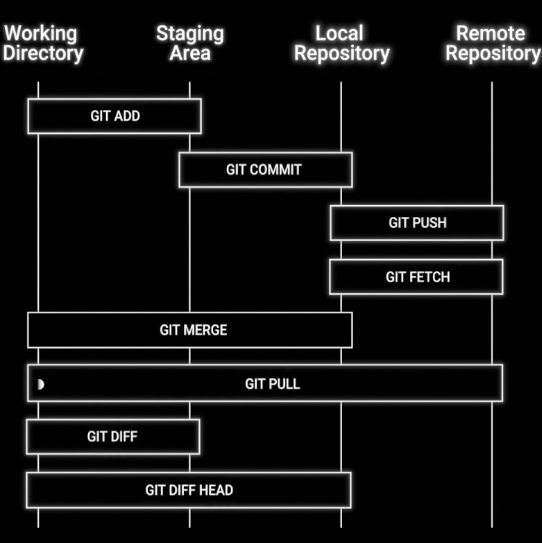
# To see which branches are merged in remote repository.
git branch --merged
# delete a branch in local repository, do it after the remote repository is merged.
git branch -d <branch_name>
# Create a new local branch.
git branch <branch_name>

# or, create a branch and checkout to that in a single cmd
git checkout -b <branch_name>
# Switch to another local branch
git checkout <branch_name>
# If we want to add some changes into latest commit, `--amend` flag should be used.
git add .
git commit --amend
# To delete the last local commit, and turn back to previous commit.
git reset --hard HEAD~1
Q) What does origin stand for in Git terminology?
In Git, origin is the default name for a remote repository from which a local repository was cloned. It serves as a shorthand reference to that remote repository. Common uses of origin in Git commands include:
git push origin branch_name: Pushes changes from your local branch to the remote branch on theoriginrepository.git pull origin branch_name: Fetches changes from the remote branch on theoriginrepository and merges them into your local branch.git fetch origin: Fetches all updates from theoriginrepository without merging them.
# Adds all changes.
git add --all
# If .gitignore does not make a file untracked, use this command first to make the file untracked.
git rm --cached <file>
# List all branches
git branch -a
# To see which of your local branches are linked (tracking) to remote branches
git branch -vv
# Fetches all branches from the origin (if master is not the only branch)
git fetch --all
Q) What do we mean when we say checkout?
In Git, “checked out” means that a branch or commit has been selected to be active in your working directory. When you “check out” a branch, Git updates the files in your working directory to match the state of that branch and sets that branch as the one you’re currently working on.
# Create a local branch that tracks an origin `origin/feature`, and updates
# the working directory to match the `feature` branch

git branch feature origin/feature
# See commit logs
git log --pretty=oneline
# switch to main branch
git checkout main

# merge the feature branch into current branch
git merge my-experimental-changes

# After merging the feature branch into main, delete the feature branch locally
git branch -d my-experimental-changes